For individuals & families
A safer, more private home online, starting this week.
Scams, stolen passwords and quiet data collection reach every household. Most of the protection is free, and a handful of changes does most of the work. Here’s what matters, and how to do it.
Free, easy-to-follow steps · no sign-up · help there if you want it
Why it matters
One weak spot can open the door to everyone.
A household shares Wi-Fi, devices, photos and often passwords. One reused password, or an old tablet that no longer gets updates, can let someone into the rest.
Scammers know it. They pose as your bank, a delivery company or a family member in trouble, and they’re good at it. None of this is anyone’s fault: devices come set up to share, and nobody has time to check every setting.
Sound familiar?
- Everyone uses the same few passwords.
- The kids’ tablet hasn’t had an update in years.
- Your photos are spread across three clouds, and you’re not sure which is which.
- A text from “the bank” nearly fooled someone in the family.
26.5%
of the scam losses reported to Scamwatch were by people aged 65 and over, who are about 17% of Australians
Source: National Anti-Scam Centre, 2026
Every 6 minutes
on average, someone reported a cybercrime to the Australian Signals Directorate in 2024–25
Source: ASD Cyber Threat Report 2024–25
The good news: Most of the protection is free, and a handful of changes covers the most common risks. Once they’re set up, they mostly look after themselves.
What to do
The household essentials, in the order that matters.
Nine steps, nearly all of them free. Start with the first three this week: they protect everything else. Open each one for how to do it, and tick it off when it’s done.
Tick “Done” as you finish each step. Ticks stay on this screen: nothing is sent, and they clear when you leave.
This week About an hour
Layer 7 · Identity & sign-in
Protect your email first
Your email can reset the password on nearly every other account, so it’s the one to lock down first.
How to do it
- Give it a passphrase you don’t use anywhere else: four or more random words.
- Turn on two-step sign-in. A code by text message is a fine start, and an authenticator app is stronger.
- Write the recovery codes down and keep them somewhere safe.
Layer 1 · Hardware & firmware
Turn on automatic updates everywhere
Updates close the holes attackers use. A device that no longer gets them stays open.
How to do it
- Turn on automatic updates on every phone, tablet and computer in the house, and restart when asked.
- Look in Settings, under Software update, for any device that’s too old to get them.
- Keep those away from banking and email, and plan to replace them.
Layer 4 · Communications
Agree a family rule for urgent requests
Scammers pose as banks, delivery companies and family members in trouble, and they rush you so you don’t stop to check.
How to do it
- Agree a family code word for any call or message that asks for money in a hurry.
- Hang up and call back on a number you already have, never one given in the message.
- Talk it through with older relatives and teenagers: scammers target both.
This month An evening or two
Layer 7 · Identity & sign-in
Share a password manager
Reused passwords are how one data breach turns into many broken-into accounts.
How to do it
- Choose a password manager with a family plan, and set it up on your own devices first.
- Move important accounts in one at a time, changing any password you’ve used twice.
- Share household logins, like streaming and utilities, through its shared vault instead of by text.
Layer 6 · Storage & encryption
Back up what you’d hate to lose
A lost phone, a failed laptop or a ransom demand shouldn’t cost you years of photos.
How to do it
- Turn on your phone’s and computer’s own backup.
- Add a second copy you control, such as an external drive you update each month.
- Try restoring one photo, so you know it works.
Layer 3 · Network
Secure the home Wi-Fi
Every device in the house reaches the internet through your router.
How to do it
- Log in to the router (the address is usually on its label), change its admin password and install its updates.
- Use WPA2 or WPA3, with a strong Wi-Fi password.
- Put visitors and smart devices on a guest network.
When you’re ready At your own pace
Layer 2 · Operating systems
Set up the kids’ devices together
Children’s apps and games can collect a lot, and rules agreed together are easier to keep.
How to do it
- Use the parental controls built into the phone, tablet or console, and set them up with your child.
- Turn off location and ad tracking for apps that don’t need them.
- Agree family rules for screens and sharing: eSafety has a free family tech agreement.
Layer 4 · Communications
Move family chats to an encrypted app
Text messages aren’t end-to-end encrypted, and some chat apps collect a lot about how you use them.
How to do it
- Install Signal, and start a family group.
- Bring the people you message most, one at a time.
- Turn on disappearing messages for chats that don’t need a history.
Layer 5 · Apps, browsing & services
See what strangers can find about you
Old profiles, data breaches and public listings add up to more than most people expect.
How to do it
- Run the seven free checks on the footprint page.
- Close the gaps it finds, starting with any breached passwords.
Free tools
Free tools that do the checking for you.
From PAN, and from the government services whose job is keeping Australians safe online.
Free · PAN
The privacy check
Answer it for your household: where you stand across nine layers, and your first three steps.
Free · PAN
Your digital footprint
Seven checks anyone could run on you, with a clean-up plan that builds as you go.
Free · Australian Government
Cyber health check
The Australian Signals Directorate’s anonymous check, in under five minutes.
Free · Australian Government
Guides for families
Cyber security guides for parents and carers, young people and seniors.
Free · eSafety Commissioner
Online safety for parents
Advice for the hard conversations, from cyberbullying to what to do when something goes wrong.
Free · PAN
Help now
Something’s already gone wrong? Calm first steps, in order, and who to call.
Free guide
Not ready to talk? Start with five quick wins.
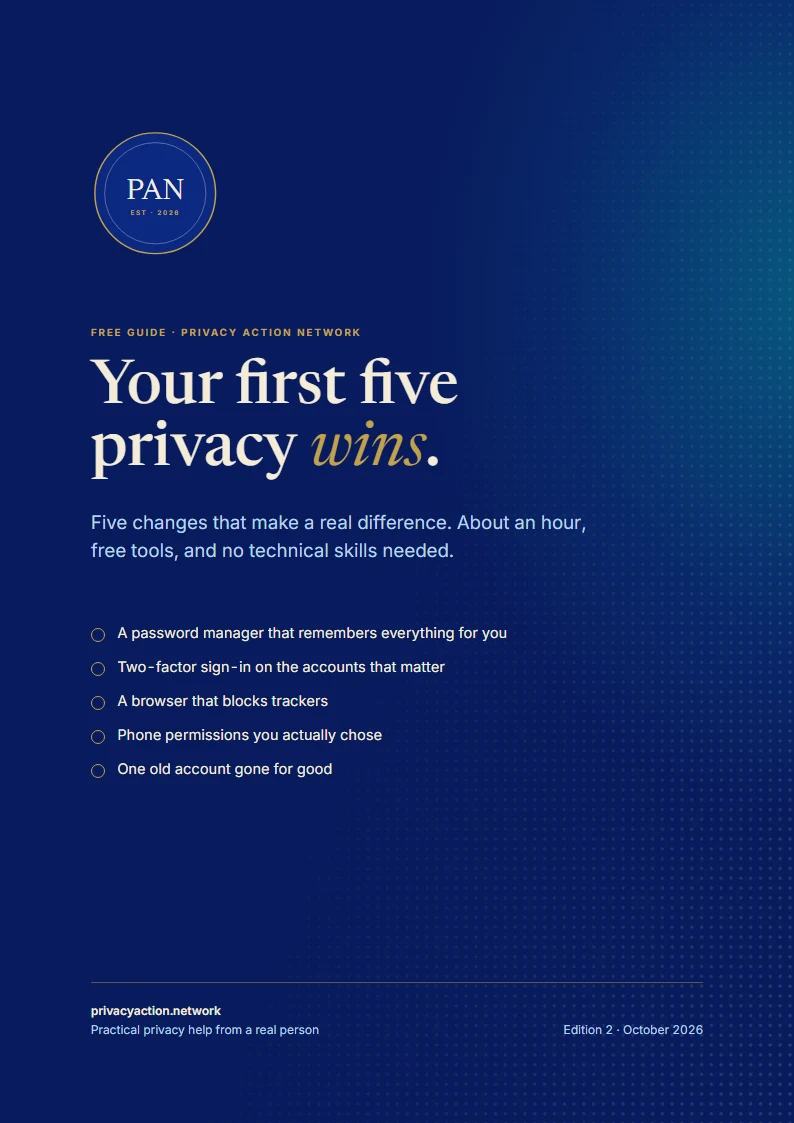
A free guide to five changes that make a real difference, in about an hour, with free tools and no technical skills needed.
- A password manager, set up in 15 minutes
- Trackers blocked, phone permissions back in your hands
- Every step broken down, with a check for when it’s done
Email me a copy
The link, sent to your inbox to keep. One email, and nothing more unless you tick the box.
Help if you want it
Rather not do it alone? Help is here when you want it.
Everything above can be done yourself. If you’d rather have someone set it up with you, or sort out the whole household in one go, that’s what I do.
Privacy audits
A check-up of your devices, accounts and footprint, with every fix in order.
Secure devices & accounts
Password managers, two-step sign-in and backups, set up with you on every device.
Tech support
Someone to call when something breaks or doesn’t look right, with privacy built in.
Safe & private AI
What’s safe to ask an AI assistant, and AI that runs at home.
Remote anywhere · on-site in Gippsland · a plan and a quote before any work
Good to know
Questions people ask
Something else on your mind? Ask it in the form below. Every enquiry gets a personal reply.
I only have an hour. What should I do?
Protect your email and turn on automatic updates. Those two protect nearly everything else.
Is a password manager safe? What if it gets hacked?
A good one encrypts your passwords on your own device, with a key only you hold, so the company can’t read them. That’s far safer than reusing passwords, one of the most common ways accounts get broken into. Protect the manager itself with a long passphrase and two-step sign-in. If you’d rather no company held even the locked copy, KeePassXC keeps it in a file on your own devices. That takes more looking after, so it suits people happy to handle their own backups.
Do I need a VPN?
Not for most of this. A VPN hides your browsing from your internet provider and public Wi-Fi, and your IP address from the sites you visit. It doesn’t stop scams, weak passwords or what apps collect, so do the essentials first.
How do I help older parents without taking over?
Do it with them, not for them: one change per visit, written down simply. Two-step sign-in on their email and a code word for urgent money requests go a long way.
Can you help with any of this?
Yes. I can set things up with the whole household, remote anywhere or on-site in Gippsland, with a plan and a quote before anything starts. How working with me works
Stuck, or want a hand?
Ask a question, or tell me what you’d like help with. Every enquiry gets a personal reply.